
SpaceUp Mac vs DaisyDisk: different jobs, compared honestly
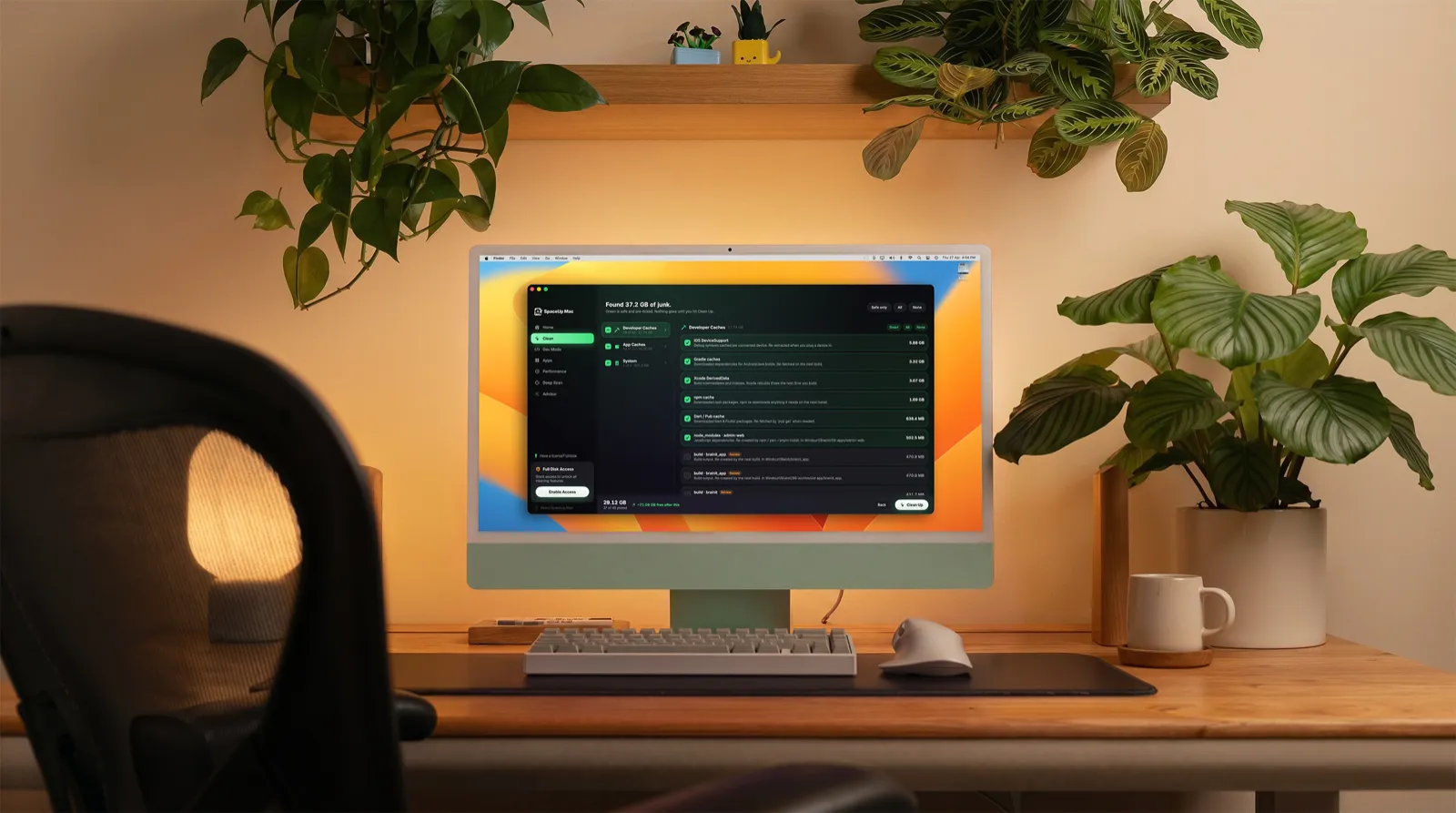
DaisyDisk and SpaceUp Mac do different jobs. DaisyDisk shows you where your disk space went, with the best visual map on the Mac. SpaceUp Mac tells you what is safe to remove, explains why in plain English, and cleans it after you approve everything on a review screen. Plenty of people genuinely want both.
First, the honest part: DaisyDisk is excellent
This page exists because people search for a DaisyDisk alternative, so let’s be straight about the original. DaisyDisk has been featured by Apple, costs $9.99 one time as of this writing, and draws your whole disk as a sunburst map that makes half a terabyte make sense in one glance. For pure visual exploration of a drive, it is the best tool there is.
It’s also a one-time purchase in a category that mostly moved to subscriptions, and that deserves respect. SpaceUp Mac is priced the same way, $4.99 once, because we think that model should win more often.
The question a map can’t answer
Open DaisyDisk and you get a gorgeous picture of your disk, including, say, a 6 GB block somewhere inside ~/Library. Is that cache your Mac can rebuild tomorrow, or files that exist nowhere else? DaisyDisk doesn’t say. It doesn’t classify items, explain them, or mark anything as safe to delete. You decide everything yourself.
For people who can read a file path and know what it means, that is the whole appeal. No hand-holding, no opinions, just the map. For everyone else, that is the exact point where disk cleanup gets scary, and a beautiful map doesn’t make the judgment call any easier.
To be fair, you don’t need to buy anything to get started. macOS has its own storage recommendations built in, and our guide to freeing up disk space walks through the free manual route before it mentions our app at all.
What SpaceUp Mac does with that gap
SpaceUp Mac starts from the opposite end. Instead of drawing the whole disk and leaving the judgment to you, it catalogs the things that are safe to remove and explains each one. The Clean tab groups junk into Developer Caches, App Caches, and System, with a plain reason next to every item. Green means safe, and safe items come pre-ticked. One real scan found 117.45 GB of junk this way.
Deep Scan covers the “where did it all go” question at the file level. It finds your biggest files and folders and adds plain-English risk notes, so a 6 GB mystery block comes with context instead of a shrug. Container and VM disk usage is shown as information with a copy-paste reclaim command; the app never deletes those itself.
Developers get Dev Mode: Xcode DerivedData, iOS device support, npm, pnpm, Gradle and Homebrew caches, plus node_modules and build output behind their own review step, and caches from editors and AI desktop apps. Local AI models are listed with their sizes and never auto-deleted. If that’s your kind of clutter, our developer junk guide goes deeper.
What happens when you approve a clean
Nothing is removed without your approval on a review screen, and the app labels what will happen to each item:
- Your own files, like big files from Deep Scan and apps you uninstall, move to the Trash so you can undo.
- Rebuildable junk, like caches, logs and temporary files, is cleared directly. Trashing gigabytes of cache would just move the problem into the Trash.
- A few clearly labeled items are permanent: old iPhone and iPad backups, the Empty Trash option, Xcode Archives, and Advisor cleanups like removing old Simulator runtimes. Each one asks you to confirm before anything is removed.
The reasoning behind that split is in why Trash-first matters, and the full safety model is documented in cleaning and safety. On a 256 GB MacBook Air, this flow took 39 GB free to 168 GB. That story is in from 39 GB to 168 GB.
Side by side
| DaisyDisk | SpaceUp Mac | |
|---|---|---|
| The job | Shows where your space went | Tells you what is safe to remove, then cleans it |
| Price | $9.99 one time, as of this writing | $4.99 one time, first scan and first clean free |
| Visualization | Sunburst map, best in class | Storage dashboard, no sunburst map |
| Explains what’s safe | No, you judge everything yourself | Yes, plain reasons on every item |
| When something is removed | Your call, your judgment | Review screen first, your own files go to the Trash, permanent items say so |
| Developer and AI junk | Visible as folders, unlabeled | Dedicated Dev Mode, per-tool caches, AI models never auto-deleted |
| Subscription | No | No, ever |
Who should pick which
Pick DaisyDisk if you know your filesystem. If you can glance at a path and know whether it’s rebuildable, you get the best map on the platform and you don’t need anyone’s opinion layered on top of it.
Pick SpaceUp Mac if you want the judgment built in: what each item is, whether your Mac can rebuild it, and a review screen before anything happens. It runs on macOS 14 or later, Apple Silicon and Intel, ships as a notarized DMG, and needs no account. Everything runs on your device, with no analytics or trackers, and the app goes online only for the license check and, if you allow it, an update check. The direct build asks for Full Disk Access so it can measure the folders it shows you, and you can revoke that anytime in System Settings.
Skeptics judge any cleaner on a short list: does it delete only what it says, can you see and confirm everything first, does it nag you, is it easy to remove. That list shaped SpaceUp Mac. Every removal is visible before it happens, and uninstalling is dragging the app to the Trash, with no background daemons left behind.
And honestly, owning both is a reasonable answer. Together they cost about $15 as of this writing, both one-time purchases, and they cover different halves of the same problem: DaisyDisk to explore and understand your disk, SpaceUp Mac to clean the routine junk with rails on. If you’re weighing CleanMyMac instead, our CleanMyMac comparison covers that side.