
Getting a new Mac? Clear these before Migration Assistant copies them
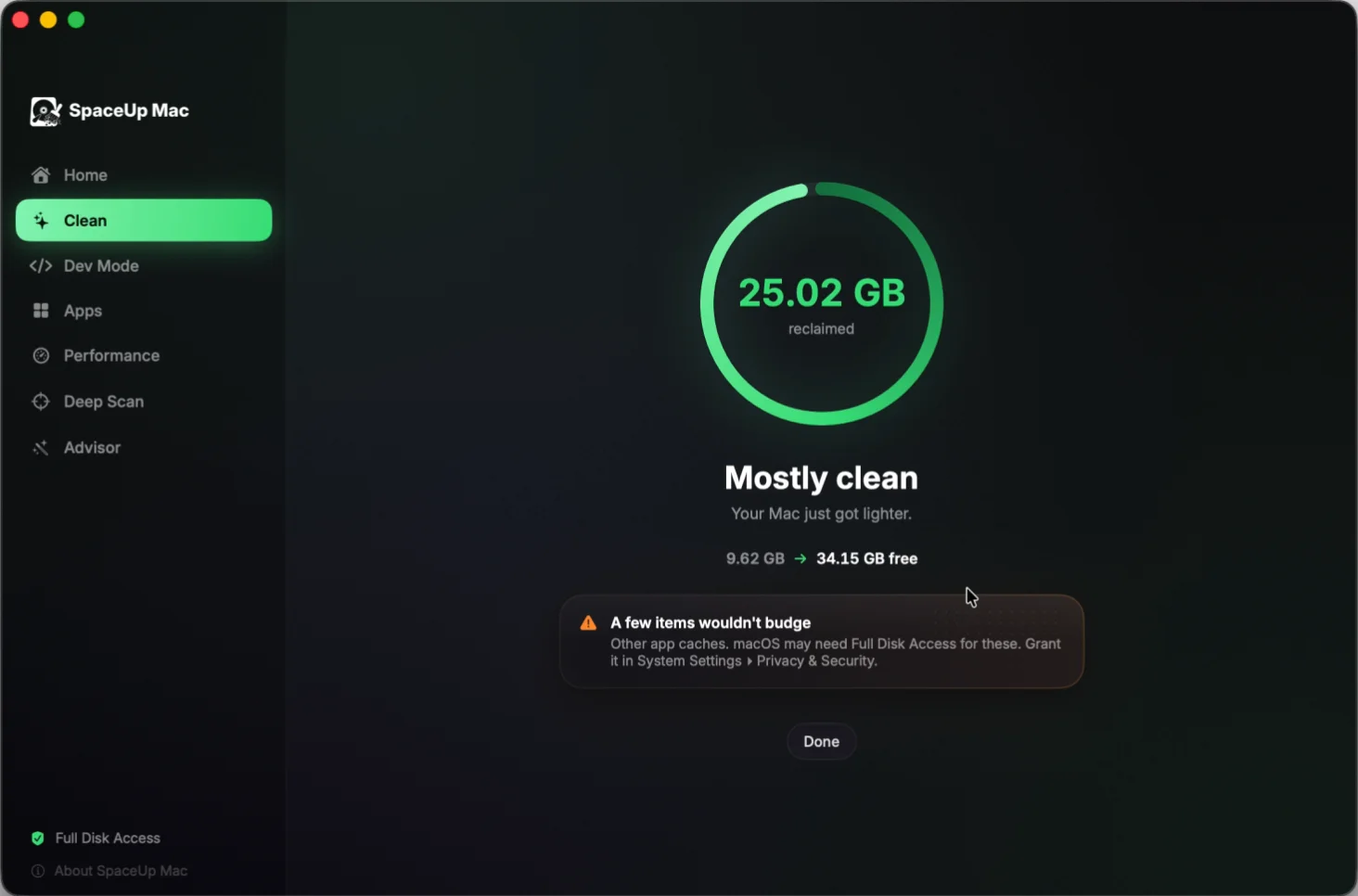
Checked on: MacBook Air M2, macOS 26.3.1, September 26, 2026. Measured size: 25.02 GB reclaimed by one SpaceUp Clean, free space 9.62 GB to 34.15 GB.
Yes, clean first. Migration Assistant moves user accounts as a whole, so the caches, old installers and developer build files sitting in yours come along to the new Mac unless you clear them. Before you start a transfer, clear what rebuilds itself (app caches, Xcode’s DerivedData, package manager caches), delete installers for apps you already have, and empty the Trash once you’re sure. Leave your documents, photos, mail and app data alone: those are what the move is for.
What Migration Assistant copies
Apple’s tool moves your information from one Mac to another, and you pick what comes along by category. Before you choose, it adds everything up: “Migration Assistant calculates how much storage space is used by all of your information, including applications, user accounts, files, folders, and settings” (Apple Support). Then you “Select the checkbox next to each category of files that you want to transfer.”
That total is the number to shrink. Your user account is your home folder with everything inside it, including the hidden Library folder where apps keep their caches. Apple also notes that “Large transfers might need hours to complete.” Clearing junk first means the new Mac starts with free space instead of last year’s leftovers.
It doesn’t touch the old Mac: “It doesn’t delete information from your old Mac” (same page). So anything you clear, you clear on purpose, before the transfer.
What to clear before you migrate
These rebuild by themselves or can be downloaded again, so they’re safe to leave behind:
- App caches in
~/Library/Caches. Apps refill them as you use them. Quit the apps first. More in What is ~/Library/Caches? - Installers (.dmg and .pkg files) in Downloads for apps that are already in Applications. Once an app is installed, its installer is only a copy.
- Xcode’s DerivedData, if you write code. It’s build output, and Xcode makes it again on the next build. See DerivedData on Mac.
- Package manager caches:
~/.gradle/caches,~/.npm,~/.cacheand Homebrew’s download cache. Each re-downloads what a build needs. One caution for~/.cache: local AI tools keep model files there, and those are big downloads to repeat. SpaceUp never auto-deletes local AI models. - Simulator runtimes you no longer test on. Remove them with Apple’s own tool,
xcrun simctl runtime delete, rather than by deleting folders. Developer junk on Mac has the rest of the developer list. - The Trash. Files in the Trash still take space until you empty it. Look through it first.
What to keep
- Documents, Desktop, Photos, Music and Mail. These are the point of the move.
- App data in
~/Library/Application Supportand~/Library/Containers. Logins, settings and libraries live there. - iPhone and iPad backups, unless you’re sure you have a newer one. They don’t come back. See MobileSync backups.
- Anything you can’t name. If you don’t know what a folder is, look it up before you delete it. Our What is this folder? pages cover the common ones.
Doing it with SpaceUp Mac
SpaceUp Mac finds the rebuildable part for you and shows why each item exists before anything is removed. Run a scan on the old Mac:
- Clean lists caches, logs and developer build files with their sizes. Untick anything you want to keep, then clean. These are cleared directly, since your Mac rebuilds them. Empty Trash is its own item that you tick yourself, and it’s marked “Can’t undo”.
- Deep Scan lists big items, including installers in Downloads and on the Desktop, so you can decide on each one. Anything you pick there moves to the Trash, so you can put it back.
- Empty the Trash when you’re happy, then start Migration Assistant.
On my own MacBook Air M2 (256 GB), one Clean reclaimed 25.02 GB and took free space from 9.62 GB to 34.15 GB. Before that clean, the Clean tab showed Xcode DerivedData at 5.71 GB, Gradle caches at 5.05 GB, ~/.cache at 1.68 GB and the npm cache at 727.8 MB. Your numbers will be different: they depend on the apps and tools you use. How SpaceUp decides what’s safe explains what goes to the Trash and what’s cleared directly.
The first scan and first clean are free.
After the move
On the new Mac, apps rebuild their caches as you use them, and that’s normal. Open each app once, sign in where it asks, and let Xcode or your package manager download what the next build needs. Then check System Settings > General > Storage to see where you’re starting from.
How this page was made: Drafted with AI help from Apple's documentation, vendor docs and SpaceUp's source code. Sizes measured on my MacBook Air M2 (macOS 26.3.1) on September 26, 2026. Screenshot by me.