
How to clear AI app storage on Mac
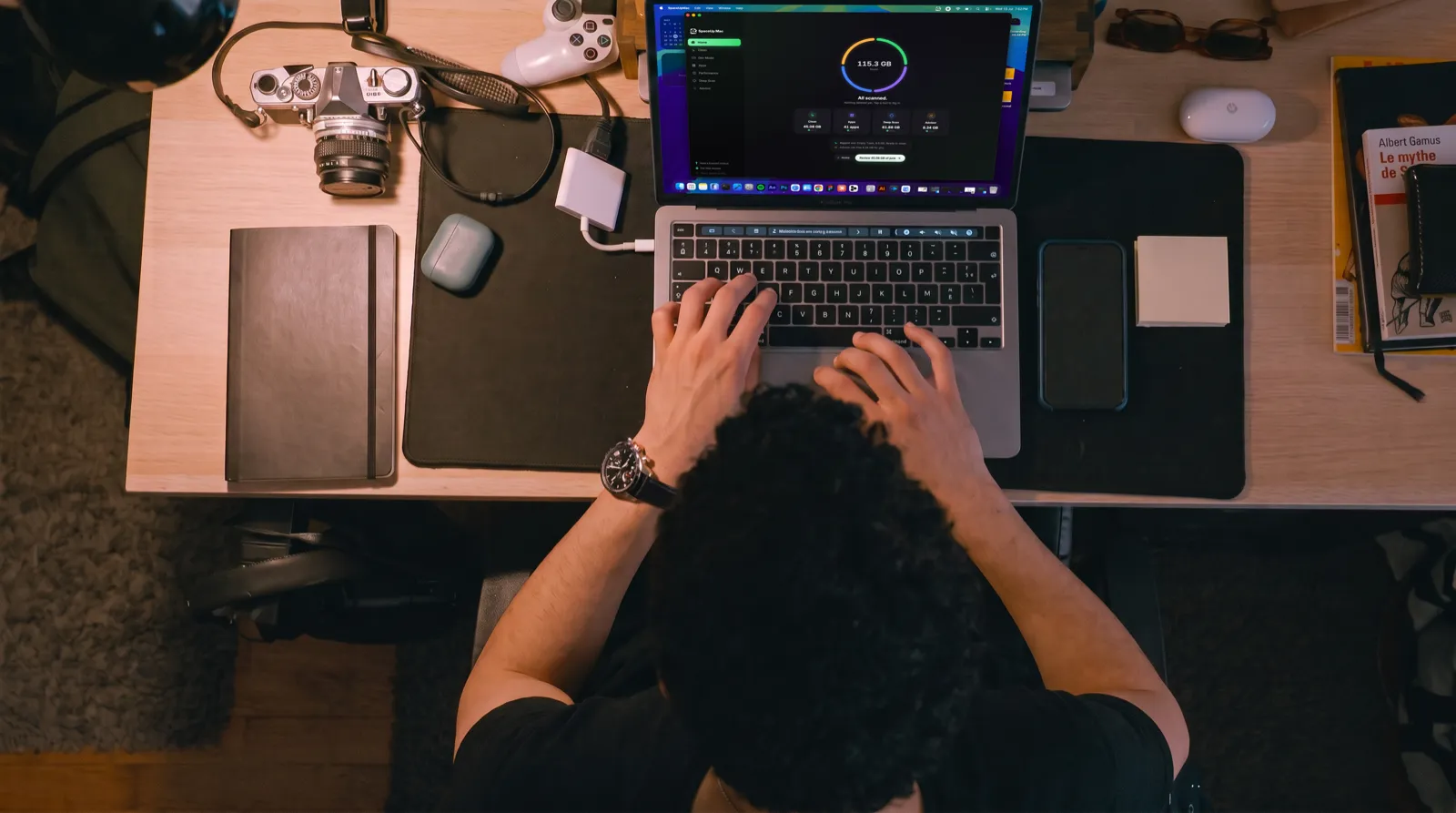
Local AI tools are some of the biggest quiet storage users on a Mac. One Ollama model can run 4 to 40 GB, the Hugging Face cache grows every time a script pulls weights, and AI chat apps stack web caches on top, so 10 to 100 GB or more is normal. To clear it, check three folders first, ~/.ollama/models, ~/.lmstudio/models and ~/.cache/huggingface/hub, then remove unused models with each tool’s own commands and clear the rebuildable caches.
Model files are safe to remove because they re-download from the source when you need them again. Chat history, API keys and login tokens don’t come back, so those never get deleted blindly. This guide walks the manual route first, then shows how SpaceUp Mac handles the same folders.
Where AI storage lives on a Mac
Almost all of it sits in hidden folders in your home directory. Finder doesn’t show them by default, so press Cmd+Shift+. in any Finder window to reveal them.
| Tool | Where it lives | What’s in there |
|---|---|---|
| Ollama | ~/.ollama/models | Pulled models, plus any you built from a Modelfile |
| LM Studio | ~/.lmstudio/models (older installs used ~/.cache/lm-studio/models) | Downloaded model weights |
| Hugging Face | ~/.cache/huggingface/hub | Weights pulled by transformers, diffusers and mlx-lm |
| PyTorch | ~/.cache/torch/hub/checkpoints | Pretrained weights from torch.hub |
| Image generators | ~/ComfyUI/models, ~/stable-diffusion-webui/models, ~/.diffusionbee/downloads | Checkpoints and LoRAs |
| AI chat apps | ~/Library/Application Support/Claude and similar | Web caches sitting next to your sign-in and chats |
MLX doesn’t get its own row because it doesn’t need one. Models you pull with mlx-lm come from the Hugging Face hub, so they land in the same ~/.cache/huggingface/hub folder. Chrome can hold several GB of its own on-device AI models under ~/Library/Application Support/Google/Chrome too, and it re-downloads them if a feature needs them.
Check the sizes before you delete anything
Open Terminal and measure the folders. du -sh prints one human-readable total per path.
du -sh ~/.ollama/models
du -sh ~/.lmstudio/models
du -sh ~/.cache/huggingface/hub
du -sh ~/.cache/torch/hub/checkpoints
du -sh ~/Library/Application\ Support/Claude
If a line says “No such file or directory”, that tool isn’t storing anything on this Mac. Move on. Large folders can take a minute to total up, that’s normal.
What’s safe to clear, and what never is
Think in three tiers.
- Model weights are rebuildable but big. Anything you pulled from a hub re-downloads on demand, so deleting is safe, it’s just a bandwidth decision. The catch: model folders can mix downloads with your own work, models you built from a Modelfile, custom merges, imported checkpoints. Look before you sweep.
- App caches are junk the app rebuilds on its next launch. Clearing them costs nothing but a slightly slower first start.
- Chat history, API keys and login tokens are personal data, and they sit surprisingly close to the junk. The Hugging Face token lives one level above the model cache, and a chat app’s conversations live next to its GPU cache. This is why deleting a whole app folder is the one move to avoid.
Clear it by hand
Ollama
Ollama’s store is content-addressed, and layers are shared between models, so don’t delete files inside ~/.ollama/models by hand. Use the CLI instead.
ollama list
ollama rm llama3.1:8b
ollama list shows every model with its size. ollama rm removes one cleanly, and ollama pull brings it back whenever you want it again.
LM Studio
Open LM Studio’s model manager to see everything you’ve downloaded, with sizes, and delete from there. Your saved chats are stored separately from the models folder, so removing weights doesn’t touch them.
Hugging Face and MLX
If you have the Hugging Face CLI installed, it can walk the cache for you.
huggingface-cli scan-cache
huggingface-cli delete-cache
scan-cache lists every cached model with its size, and delete-cache lets you pick which ones to drop. Without the CLI, remove just the hub folder:
rm -rf ~/.cache/huggingface/hub
Don’t delete the whole ~/.cache/huggingface folder. Your access token lives at ~/.cache/huggingface/token, and wiping it logs you out of gated models. Everything under hub re-downloads on the next from_pretrained call, and MLX models clear along with it since they share this cache.
AI chat app caches
Quit the app first. For the Claude desktop app, the web caches are the Cache, Code Cache and GPUCache subfolders inside ~/Library/Application Support/Claude. Delete only those three, and leave the rest of the folder, which holds your sign-in and settings. The one large folder you can also clear, with care, is vm_bundles: it holds the virtual machine Claude’s Cowork feature runs in, and Claude downloads it again when needed. Its page explains when it’s safe.
Other AI chat apps follow the same pattern: a folder under ~/Library/Application Support named after the app or its maker, with cache subfolders next to data you’d want to keep. When in doubt, leave it alone. Chat app caches are usually hundreds of MB, not tens of GB. The models are where the real space is.
How SpaceUp Mac handles the same folders
SpaceUp Mac’s Dev Mode tab treats the three tiers differently on purpose.
Large model stores, Ollama, LM Studio, ComfyUI, DiffusionBee, Draw Things, Stable Diffusion WebUI and Stability Matrix, are listed with their real size on disk once they pass 500 MB, and they are never deleted. Clicking one opens the folder in Finder so you decide model by model, using each tool’s own controls. The app draws a hard line here because these folders can hold models you trained or merged yourself, and no scanner can tell your work from a download.
The re-downloadable caches, the Hugging Face hub, PyTorch and Keras weights, conda packages, show up as review items, unticked until you look at them. The Hugging Face login token isn’t in the list at all, only the download caches are. Editor and AI app caches are covered too, the VS Code family and the Claude desktop app, with sign-in and chats left exactly where they are.
Nothing in any tab is removed without your approval on a review screen, and the screen labels what happens to each item. Rebuildable caches like these are cleared directly rather than trashed, here’s why, and the full model is written up in Cleaning and safety.
AI storage is usually one slice of a bigger pile. If Xcode, npm or Docker also live on this machine, the developer junk guide covers those folders, and the free up disk space guide works through the rest of the disk.