
What is iOS DeviceSupport, and is it safe to delete?
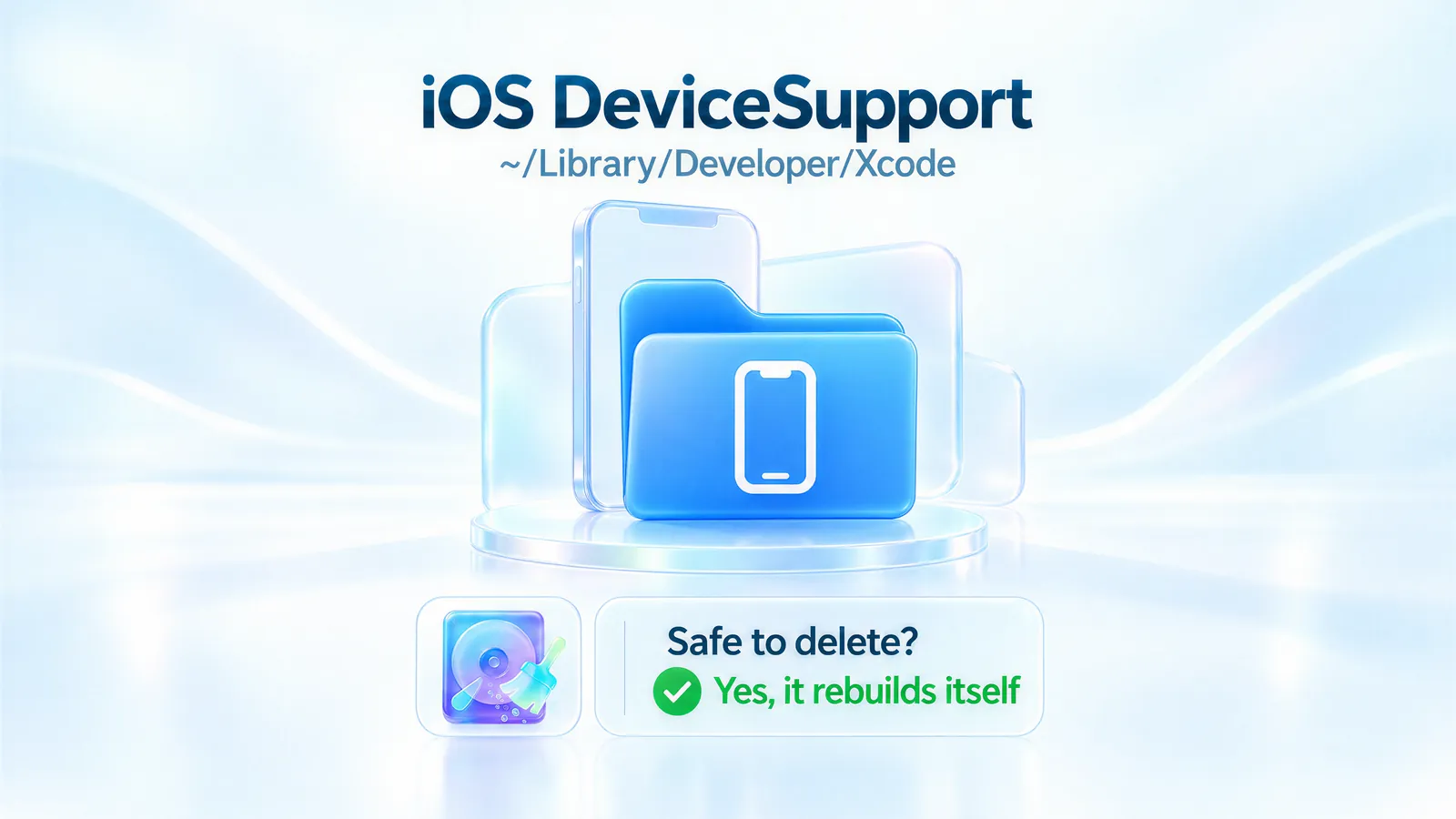
- Location
~/Library/ Developer/ Xcode/ iOS DeviceSupport - Safe to delete?
- Yes, it rebuilds itself Safe to clear, since Xcode copies the symbols again when you next connect a device.
iOS DeviceSupport is where Xcode keeps debug symbols it copies from each iPhone and iPad you connect, one folder per iOS build. It’s safe to delete. Xcode copies the symbols again the next time you connect a device. The costs are a one-time wait and weaker crash logs for iOS versions you no longer have a device for.
What is iOS DeviceSupport?
It’s a folder at ~/Library/Developer/Xcode/iOS DeviceSupport that Xcode fills when you connect an iPhone or iPad. Per Apple’s guide to operating system symbols, Xcode automatically copies the system binaries that contain symbols from each device you connect. Symbols map raw memory addresses back to function names inside Apple’s frameworks.
Xcode uses them for two jobs:
- Crash reports. They turn the Apple framework lines in a crash report into readable names. Apple’s crash report guide points you to these device symbols when Xcode can’t symbolicate the system frameworks.
- Debugging on a device. Copying a device’s symbols is part of preparing it for debugging. When that copy failed in Xcode 12.2, Apple’s release notes warned the debugger could take several minutes to attach.
Inside, you’ll see one subfolder per OS build, named with the version and build number, like 13.0 (17A577). Some names also carry a chip architecture or device model, because Apple says the symbols differ by model and CPU. Apple Watch, Apple TV and Vision Pro get sibling folders of their own: watchOS DeviceSupport, tvOS DeviceSupport and visionOS DeviceSupport.
The folder holds copies of Apple’s system files and nothing you made. Your projects and signing certificates live elsewhere, and your archived builds sit in a separate Archives folder next to it.
Is it safe to delete?
Yes. Apple’s own workaround for a symbol bug in the Xcode 12.2 release notes tells developers to delete this exact folder, then reconnect their devices so Xcode copies fresh symbols. The accepted answer on the top Stack Overflow question about it agrees: you can purge the whole folder, and Xcode pulls the data from your device the next time you connect it.
Deleting it has two costs:
- A wait on the next connect. Xcode copies the symbols again before debugging runs at full speed. One developer on Apple’s forums said the copy took about five minutes on an older iPad. Your time will vary by device and OS.
- Weaker crash logs for old versions. Apple says these symbols are specific to the OS release, the device model and the CPU architecture. For iPhone and iPad, both of Apple’s documented ways to get them need a connected device. Delete the iOS 17.4 folder after your last 17.4 device updates, and Xcode on your Mac may no longer symbolicate Apple’s frameworks in crash reports from 17.4.
If you debug on current iOS and rarely open old crash reports, neither cost will bother you.
Why it gets so big
Each version folder holds copies of system binaries for one OS build on one kind of device. Apple’s own example: an iPhone on iOS 26 and the same iPhone on iOS 26.2 need different symbols. So each point update on each test device can add a folder, and old ones can linger long after your devices move on.
It adds up. One developer on Apple’s forums reported 56 version folders, from iOS 7.1.2 to 13.2.3, at about 3 GB each and 121 GB in total on a 256 GB Mac. If you’re chasing a huge System Data number, this folder is one of the usual suspects in what System Data holds.
How to clear it yourself
- Quit Xcode and unplug any iPhone or iPad. Apple’s 12.2 workaround also starts by disconnecting your devices.
- In Finder, choose Go > Go to Folder, paste
~/Library/Developer/Xcode/iOS DeviceSupportand press Return. - Choose View > as List, then View > Show View Options and turn on Calculate all sizes. Click the Size column to sort.
- Check which iOS version each device runs today in Settings > General > About. Keep that version’s folder if you want to skip the re-copy.
- Drag the older version folders to the Trash. To start fresh, drag all of them. Xcode recreates what it needs.
- Empty the Trash when you’re sure. You get the space back only after that.
- Optional: go up one level to
~/Library/Developer/Xcodeand repeat forwatchOS DeviceSupport,tvOS DeviceSupportorvisionOS DeviceSupportif you have them. Leave theArchivesfolder there alone. It holds your archived app builds, and you may need them to read your own app’s crash logs.
Prefer Terminal for the sizes? This command only reads and deletes nothing:
du -sh ~/Library/Developer/Xcode/*DeviceSupport/*
What SpaceUp Mac does with it
SpaceUp Mac lists iOS DeviceSupport in the Clean tab, and in the Xcode group of Dev Mode which appears when SpaceUp Mac detects developer or AI tools, pre-ticked with its size and a note that the symbols come back when you plug in a device. After you approve it on the review screen, the app clears everything inside directly rather than moving it to the Trash, and keeps the empty folder, as described in Cleaning and safety. It clears all versions at once and leaves the watchOS, tvOS and visionOS folders alone, so use the Finder steps above if you want to keep one version.
Common questions
Will deleting iOS DeviceSupport break Xcode or my projects?
No. Your projects, archives and signing certificates live elsewhere. Xcode copies a device’s symbols again the next time you connect it.
How do I get the symbols back right away?
Open Xcode, then connect and unlock the device. Xcode copies the symbols on its own, and you can watch the progress in Window > Devices and Simulators, or in Device Hub in Xcode 27. Apple also documents a Terminal route, xcodebuild -prepareDeviceSupport, in its symbol guide.
Is this the same as simulator storage?
No. Simulators live under CoreSimulator, a separate folder with its own rules. See the CoreSimulator page, or ~/Library/Developer for everything else Xcode stores.
I don’t build apps. Why do I have this folder?
Xcode creates it when it copies symbols from a connected iPhone or iPad, so at some point Xcode on this Mac, or an older Mac you migrated from, saw one of your devices. If you’ve stopped using Xcode, trash the whole folder, and check the developer junk guide for Xcode’s other leftovers.